Events
Events bring everything together for a live session. Group multiple presentations into an agenda, broadcast to different screens through channels, and create quick slides on the fly.
Creating an Event
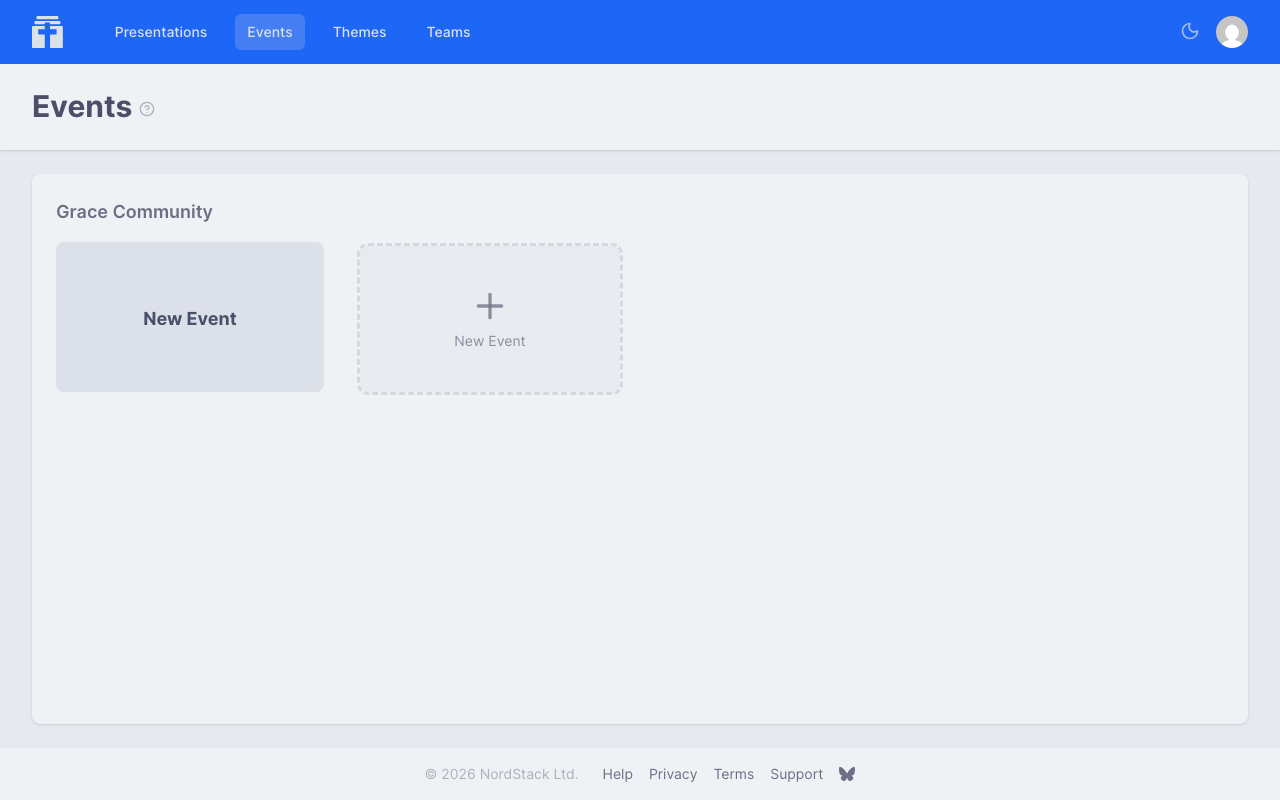
Events belong to a team. Choose the team with the selector next to the logo, go to its Events page and click New Event: the event is the team's from the start, and the event page opens. Outside a team, the Events page asks whose events you want and takes you to that team's. Only members of the team can open and manage the event.
Building an Agenda
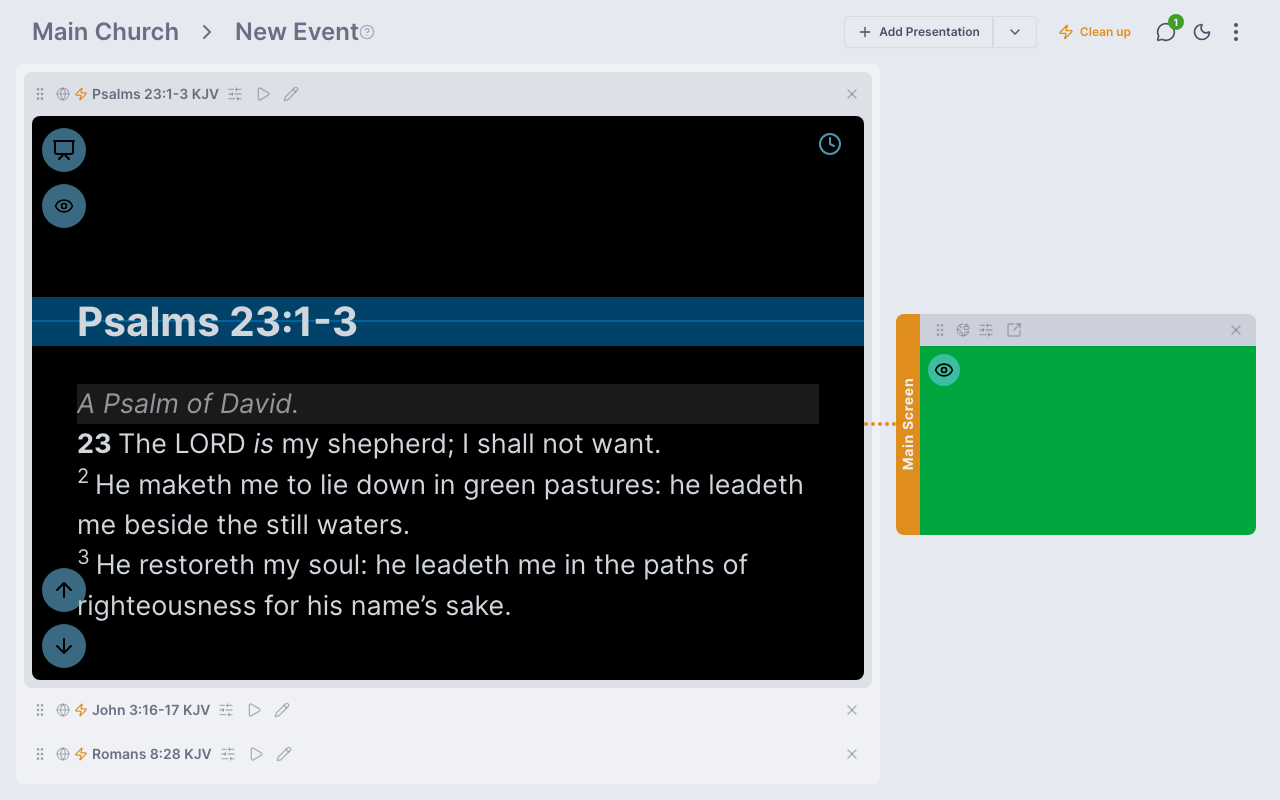
An event's agenda is an ordered list of presentations. Add presentations from your own collection or from any shared with the team. You can reorder them, and switch between presentations during the live session with a single click.
Managing a Live Event
The event page gives you a dashboard for running your session. From here, you can:
- Select which presentation is currently active
- Control the active presentation (navigate presentation points, blank screen, autoplay)
- Switch between presentations as your agenda progresses
- See which channels are broadcasting and what they're showing
Multiple team members can manage the event simultaneously — everyone sees the same state in real time.
The app's usual top bar stays at the top, so the rest of the app is one click away. Under it, the event's toolbar names your team and the event and holds its actions: Add Slides, Add Channel and Event settings (the cog). Whatever doesn't fit on a smaller screen is in the ⋯ menu, as is Clean up Quick Slides, which appears once the event has quick slides. Full screen is the last button, at the far right. If the event loses its connection, the toolbar says so.
On a phone the event page shows one column at a time. Tap the round arrow button at the bottom right to switch between your presentations and your channels; adding a channel from the ⋯ menu switches to the channels for you.
Full screen
To give the event all of your screen, press F or use the toolbar's Full screen button. The top bar and the footer are hidden and the toolbar stays, its button now Exit full screen. The team chat sits beside it, and a menu button appears at the left of the toolbar: it shows a dot when you're offline and opens a menu with the rest of the app. Press F or Esc to leave full screen. Full screen isn't offered on an iPhone, whose browser doesn't support it.
Channels
Channels are the broadcast outputs of your event. Each channel has its own public URL that displays the currently active presentation. Think of channels as separate screens that can each show different content.
An event of a church on the free plan has one channel; more channels per event, such as a stage screen beside the main screen, are part of the paid plan. See Free and Paid Plans.
Presentations and channels are public unless you make them private. A padlock beside a presentation or a channel — on the event page, a presentation card, or the title of the editor and controller — means it's private: only you and your team can see it. Click the padlock to open its settings on the Sharing tab, where you can make it public again.
To end a broadcast, use the channel's Take off air button (the crossed-out radio icon in its toolbar): its screens go back to the off-air state, and the Live section of your team's bulletin shows that nothing is on air. Connect a presentation again to go back on air. A presentation that is on air can't be removed from the event until its channel is taken off air.
Types of Channels
Channels are flexible — you can set them up for different purposes:
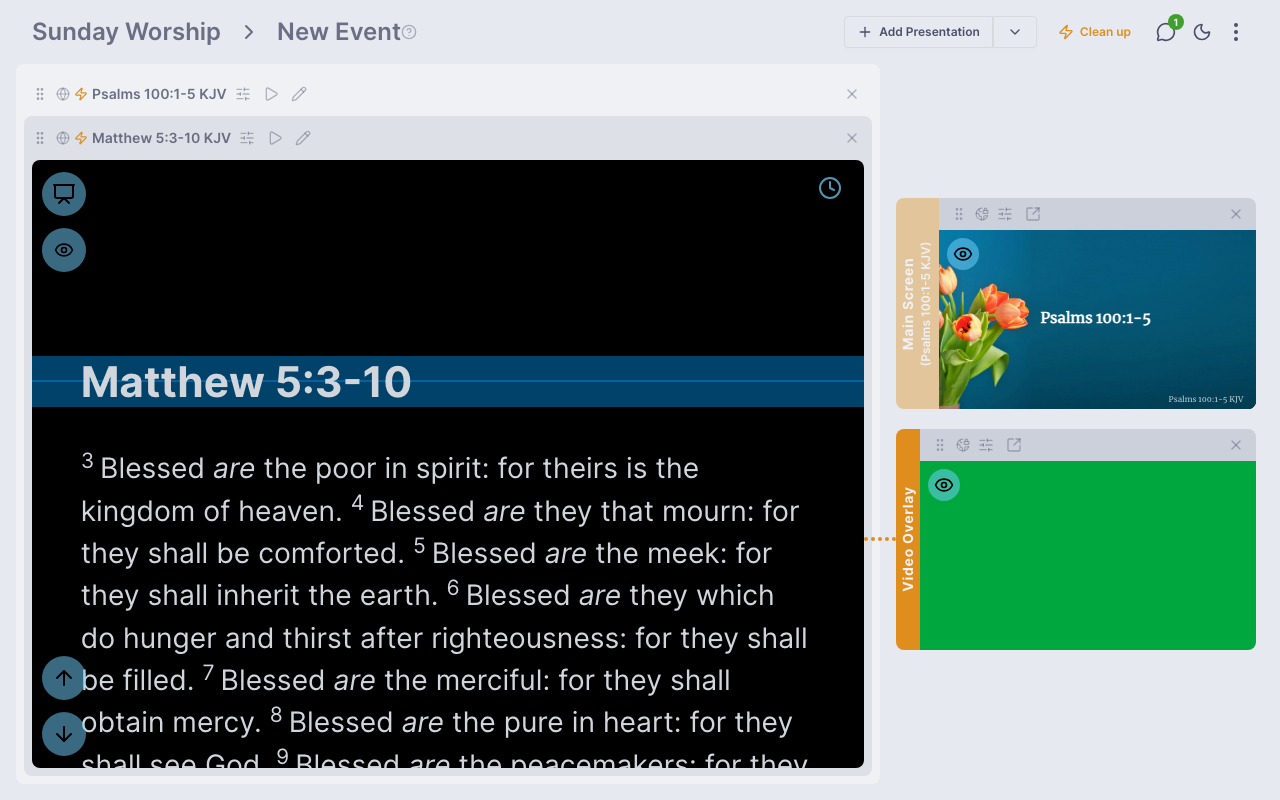
- Main screen — the primary projector or display for your audience. Show the current presentation at full size.
- Video overlay — a channel configured for overlay graphics on a video feed, often with a transparent or minimal theme.
- Audience devices — share a channel link or QR code with your audience so they can follow along on their own phones or tablets. This is especially useful for outdoor events where there's no shared screen.
Channel Toolbar
Each channel has a toolbar on the event page where you can:
- Select which presentation to broadcast on that channel
- Blank the channel's screen independently
- Toggle display options like highlight mode
Channel Settings
Open the channel settings by clicking the gear icon on a channel's toolbar. The settings panel lets you customise how a presentation appears on that specific channel — without changing the original presentation.
Theme Override
By default, each channel shows the presentation's own theme. Enable the theme override to select a different theme for this channel. This means you could show the same presentation on a main screen with a bold, colourful theme and on audience devices with a clean, minimal theme.
Layout
Controls where the presentation content is positioned on screen. This is especially useful for video overlay channels where you want text to appear in a specific region:
- Full Screen (default) — content fills the entire screen
- Lower Third — content appears in the bottom third, common for video overlay graphics
- Upper Third — content appears in the top third
- Left Half — content fills the left side of the screen
- Right Half — content fills the right side of the screen
- Inset — content appears in a centred strip, leaving space at the top and bottom
A layout is a part of the screen — the lower third is the bottom third — that the words and the slide header and footer share: the footer sits at the bottom of the region, the header at its top, and the words between them, so a passage's reference stays under the reading in the right half of the screen and a lower third holds both. Along the screen's edges the theme's own margins are kept.
You can also enable Show Layout Controls to let viewers on this channel toggle between layouts themselves.
Text Alignment
Override the content's text alignment for this channel. Choose from left, centre, right, or use the default alignment from the content itself.
Options Override
Enable the options override to change text size, slide mode, reveal, slide content, highlight, and header and footer settings for this channel independently of the presentation's own settings. These work the same as the presentation settings but only affect this channel's output — turn on Hide the header and footer here to keep a song's copyright footer off a stage screen while the main screen still shows it.
Sharing
Controls who can view this channel and provides sharing tools:
- Public access (default for a new channel) — anyone with the link can view the channel
- Private — only team members can view it
The sharing section also shows a QR code and direct link. Display the QR code on screen or print it on a programme, and your audience can scan it to follow along on their own devices. The channel updates in real time — as you navigate points or switch presentations, every connected device sees the change instantly.
Quick Slides
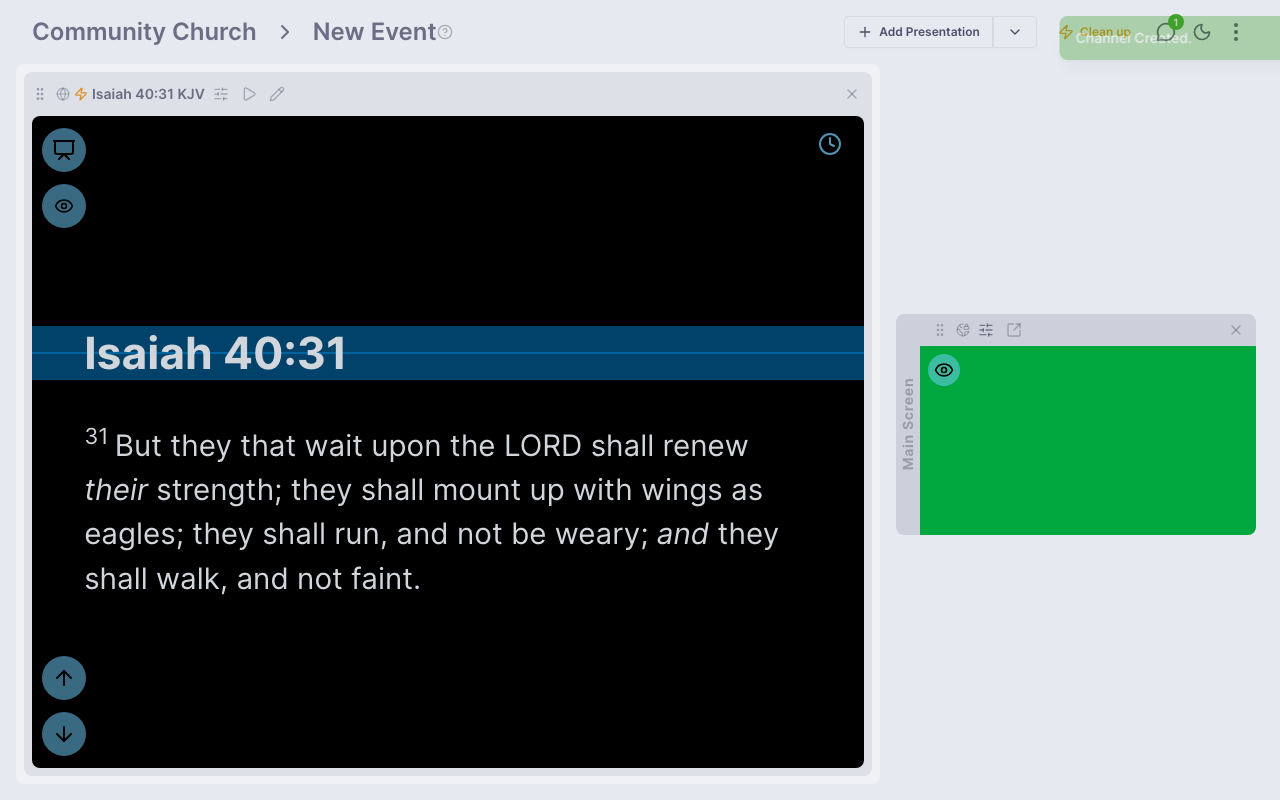
Quick slides let you create presentation content on the fly during a live event — perfect for unscripted moments like Bible readings, songs, or last-minute announcements.
Creating a Quick Slide
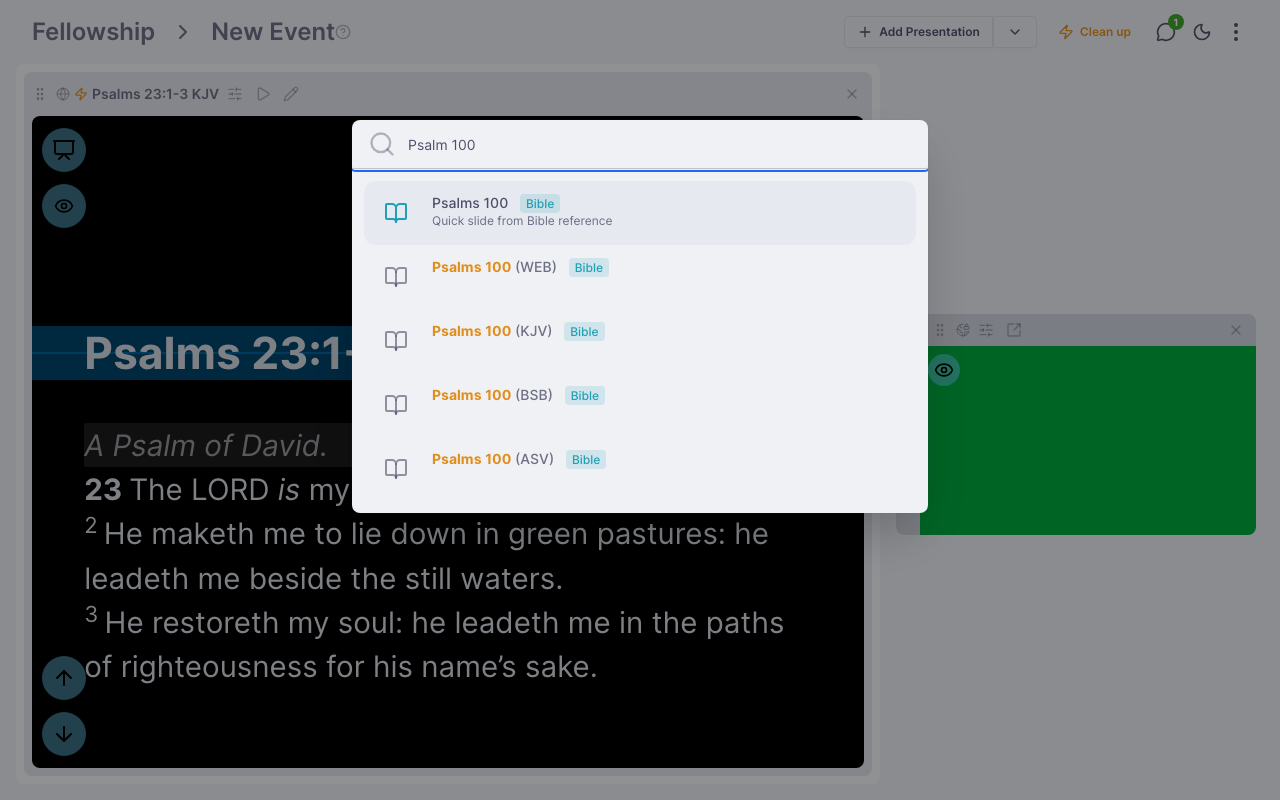
Click Add Slides on the event page to open the picker. You have three types of quick slide content:
- Bible — type a Bible reference (like "John 3:16" or "Psalm 23:1-6 NIV") and Chapel Screen will find the verses and build a slide automatically. If you don't specify a translation, your team's default is used, else your own, else the King James Version.
- Song — search for a song from the built-in hymnal. The lyrics are formatted and ready to present.
- Free text — a blank slide you can type anything into.
A song that needs a licence, or a Bible translation that is not free, is added only when the event's team belongs to a church on the paid plan; the picker marks them. After selecting your content, you'll choose a theme, then either Add to List (adds it to the end of your agenda) or Present Now (adds it and immediately makes it the active presentation).
Managing Quick Slides
Quick slides are marked with a lightning bolt icon on the event page. They differ from regular presentations:
- They don't appear in your main Presentations list
- They're editable — you can tweak the content after creation
- When removed from an event, they're automatically deleted (unless they're used in other events)
- The Clean up button in the event header removes all quick slides at once
Converting to a Regular Presentation
If you create a quick slide that you want to keep permanently, open its Settings dialog on the event page and choose Convert to Presentation. It will appear in your main Presentations list and won't be auto-deleted when removed from events.
Deleting an Event
Deleting an event removes it from the team and cleans up any orphaned quick slides that were created for it. Regular presentations are not affected.