Teams
Teams let you collaborate with others. Share presentations and themes, edit content together in real time, and coordinate during live events.
Working as a Team
The selector in the header, next to the logo, moves between your own content, shown under your name, and your teams. A team's pages live under its own address: its Presentations, Events and Themes show only the team's items, and anything you create there is shared with the team from the start. Events and Themes are in the menu only while you are in a team, because events and custom themes belong to teams; the top-level Presentations page is your own content, and the Themes page outside a team lists the themes of all your teams. If you belong to just one team, you land in it after signing in.
A presentation's editor and controller are in a context too. Opened from a team's pages, their address is the team's, and the selector moves the page to another team the presentation is shared with; opened from your own content, the address is the top-level one, your own context, whoever's the presentation is. The context a presentation is edited in decides whether a song that needs a licence or a Bible translation that is not free can be added to it — see Inserting Bible Passages and Songs.
The selector also opens the Teams page, where teams are created and joined.
The Dashboard
A team's page is its dashboard, where you land after choosing the team (and after signing in, if it is your only team). It shows the team's most recently edited presentations (with edit, control and view links), its events with their channels, the state of its bulletin with the QR code, and the team at a glance: members, pending invitations, the default Bible translation, the CCLI licence number, and when the team chat was last used. Each section shows the latest few, with a See all link to the full page. Members, invitations and settings are on the team's Team settings page.
Your own content has a dashboard too, My content: choose your name in the selector. It shows your most recently edited presentations and lists the teams you belong to, each opening that team's dashboard. If you belong to more than one team (or none), this is where you land after signing in.
Creating a Team
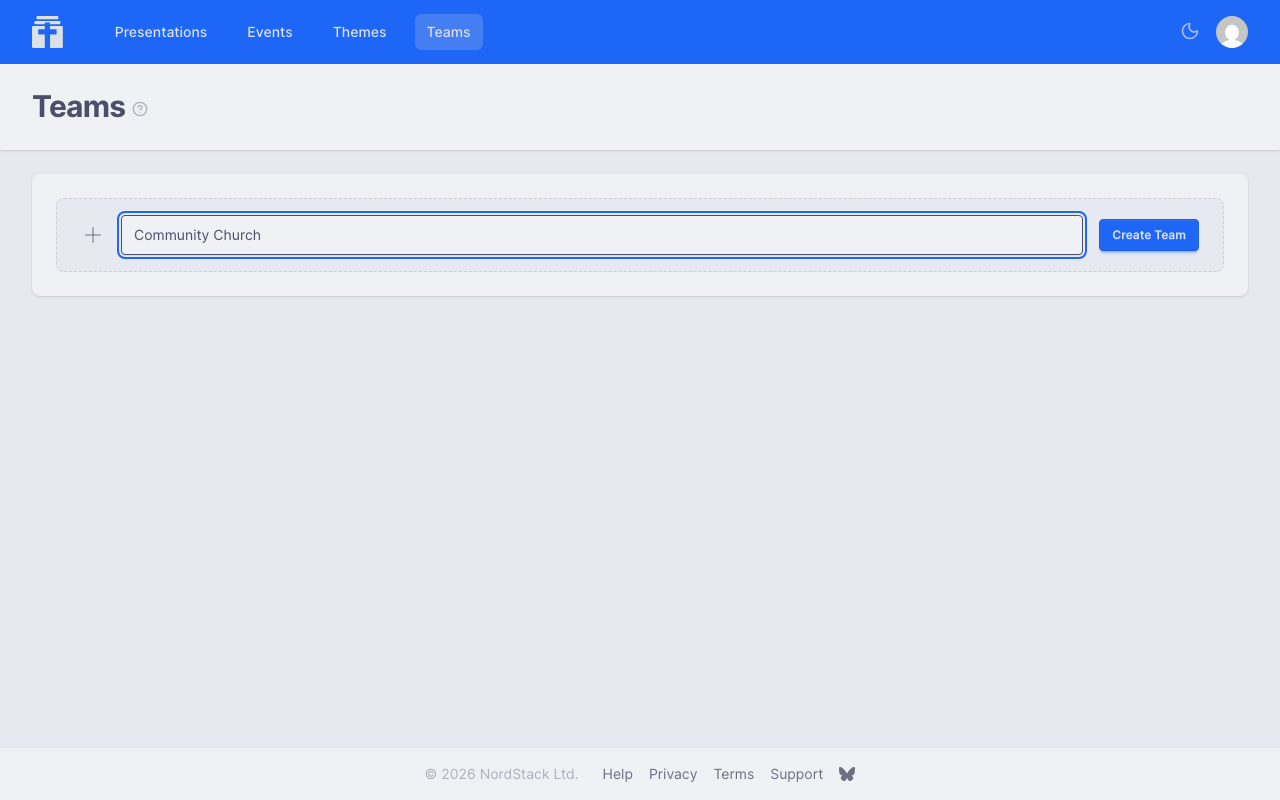
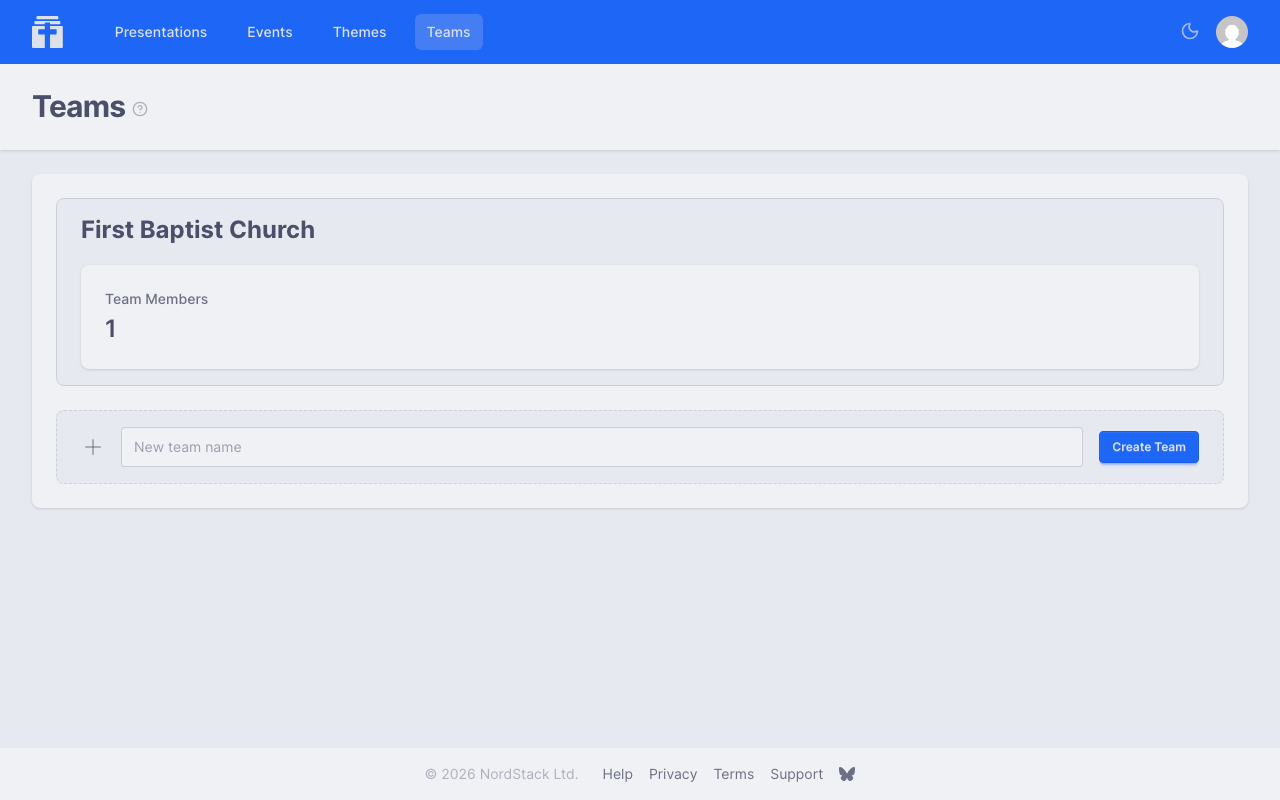
Go to the Teams page, type the new team's name and click Create Team — you'll automatically be the team admin. A team belongs to a church: choose one you're an admin of, or start a new church, named as you choose or, left empty, after the team.
Churches
Every team belongs to a church, the organisation that holds the plan its teams follow. A church can have several teams — a worship team, a youth group, a second campus — each with its own events, channels, bulletin and chat, and you can be in teams of different churches.
The church's settings page, linked from each of its teams' Team settings and from the user menu (your picture, top right), lists its teams and admins. A church's admins rename it, choose its other admins from the members of its teams, and create teams in it; a church always keeps at least one admin. Making someone a team admin does not make them a church admin.
Free and Paid Plans
Each church is on the free plan or the paid plan, and its teams follow it. The free plan keeps one team, one channel per event, the system themes, the songs that need no licence and the free Bible translations. The paid plan adds more teams, more channels per event, custom themes, more video storage (10 GB for the church in place of 2 GB), the bulletin, AI agents, every Bible translation and the whole song library, for every team of the church, at $29 USD a month or $290 USD a year (€29 EUR or €290 EUR, £25 GBP or £250 GBP, VAT included). See it in action at any time on the live demo, which needs no account and no plan. Both plans cover one church within the fair use the terms state (how many channels on air, events and connections at once); nothing is cut off for it, and a church that regularly needs more arranges it with us.
Nothing is hidden on the free plan: a paid feature carries a small sparkle, and trying it — creating a second team in the church, adding a second channel to an event, choosing what the bulletin shows — opens a dialog that shows what the paid plan adds. A church admin can upgrade from there or from the Plan section of the church's settings; anyone else can ask the church's admins, who are emailed. Your own presentations, outside any team, are never limited by a plan, with three exceptions: a song that needs a licence or a Bible translation that is not free is added only while a presentation is edited in a paid team's context (see Inserting Bible Passages and Songs), custom themes belong to teams (one is made in a paid church's team, and your own presentations can use the themes of any of your paid teams), and your own presentations have 2 GB of video storage of their own.
A church admin can first Start a free trial: 30 days of the paid plan, without a card, once per church. Its admins are emailed a week and a day before it ends, and see a banner in its last week; at the end the church is on the free plan again unless it has upgraded, and nothing is deleted. Upgrading during the trial bills from its end. A church moving from another system can choose Ask for a longer trial in the Plan section, with an invoice or renewal notice, to have the trial last until its subscription there ends.
Upgrade takes a church admin to Stripe, our payment processor, to pay monthly or yearly; tax is added where it applies. Back in the church's settings, the Plan section shows the paid plan and when it renews, and every team of the church has every feature at once. Manage billing there opens Stripe's billing page: change the card, see invoices, switch between monthly and yearly, or cancel. A cancelled plan stays until the end of the period paid for; if a payment fails, Stripe tries again and the church keeps the paid plan meanwhile.
Inviting Members
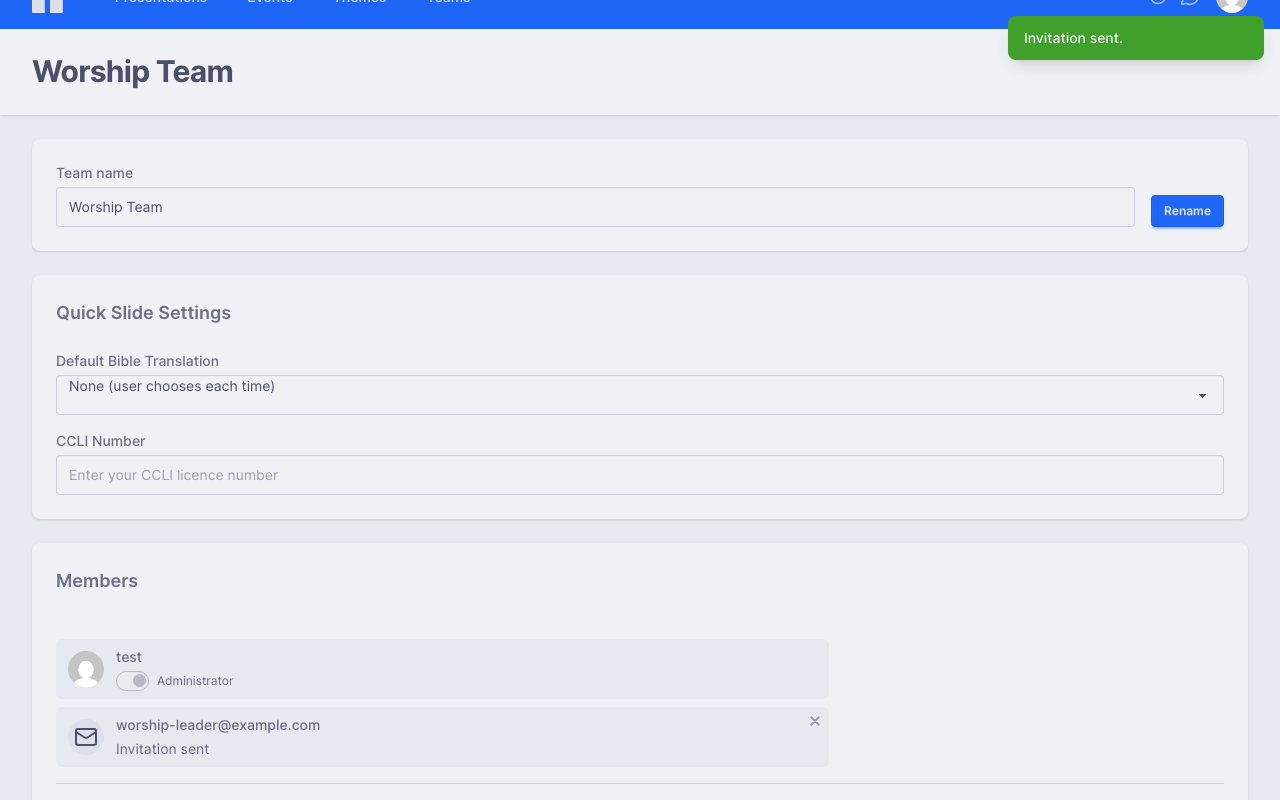
As an admin, you can invite people by email address from the team's Team settings page (linked from the team's dashboard). They'll receive an invitation that appears on their Invitations page when they log in. If they don't have an account yet, the invitation will be waiting for them when they sign up.
Team Roles
Teams have two roles:
- Admin — can invite and remove members, rename the team, manage settings, and edit shared themes. The team creator is the first admin.
- Member — can view and edit shared presentations, use shared themes, participate in team chat, and access team events.
Sharing Presentations and Themes
When you share a presentation or theme with a team, all members gain access. For presentations, every team member can view, edit, and present. Themes shared with a team appear in the theme picker for all members.
A presentation can be shared with multiple teams at once, and you can remove it from a team at any time. If the presentation is used in any of that team's events, Chapel Screen will warn you before removing it, and removing it takes it off those events too. A quick slide stays with its event: convert it to a presentation or remove it on the event page.
Real-Time Collaborative Editing
When multiple team members open the same presentation, they can edit it simultaneously. Each person gets their own cursor colour and a name label showing where they are working, and changes appear instantly — no need to save or refresh.
This works even during a live presentation. If someone makes a change while you're presenting, the audience sees the update immediately on the viewer.
Bulletin
Every team has a bulletin: a page for attendees to open on their phones during a service, like a printed bulletin. Share it with the link or the QR code shown on the team page — it can be printed on the order of service or put on the screen. Choosing what it shows is part of the paid plan.
The bulletin has six sections, each shown as an icon along the bottom of the page:
- Home, Announcements, Reading, Connect and About — each is a public presentation shared with the team. Attendees page through it at their own pace with the on-screen arrows, a swipe or the arrow keys; nobody else's screen moves, and edits you make to the presentation still appear live. Videos have play controls so attendees can watch them when they like.
- Live — a channel from one of the team's events, shown between Reading and Connect. It follows whatever the channel is broadcasting, just like the channel page, and shows as offline while nothing is on air.
Any team member fills the sections on the Bulletin page, reached from the team page. A phone-sized preview beside the form shows the bulletin exactly as attendees see it, and every change reaches their phones at once — there is nothing to save or publish. The bulletin is always public: anyone with the link can open it. A section with nothing picked is left out. Only public presentations can be picked (make one public in its Sharing settings), and a presentation made private later comes off the bulletin. The live section shows whatever its channel broadcasts, quick slides included.
Team Chat
Each team has a built-in chat that's accessible from anywhere in the app via the chat icon. You can:
- Send text messages to your team
- Edit or delete your own messages, and add emoji reactions to any message — on a computer the buttons appear when you point at a message; on a phone or tablet they sit under each message
- See when each message was posted — the time appears beside the sender's name, days are separated by "Today", "Yesterday" or the date, and hovering a time shows the full date
If you're in multiple teams, a team selector lets you switch between conversations. A red number on the chat icon counts unread messages, and a green dot means someone else on your teams is online. Hover over the icon to see how many.
Team Settings
Team admins can configure additional settings:
- Default Bible translation — used for quick slides, and for Bible passages inserted into a presentation shared with the team, when no translation is specified (before each member's own default)
- CCLI licence number — displayed on song slides for copyright compliance
Deleting a Team
Only the original creator of a team can delete it. Deleting a team removes all member access, shared resource links, and team events.